Automatic language translation
Our website uses an automatic service to translate our content into different languages. These translations should be used as a guide only. See our Accessibility page for further information.

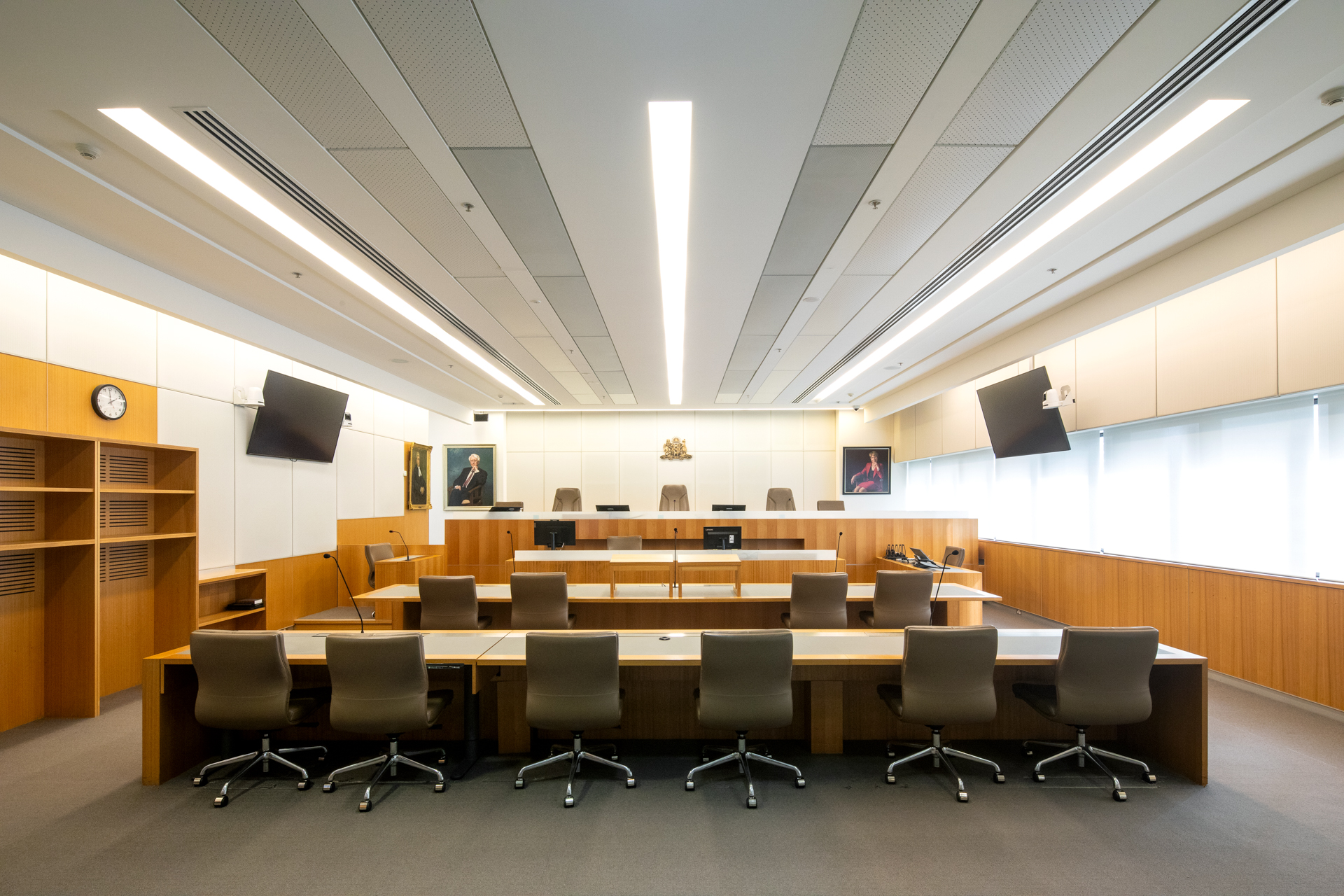
A Virtual Courtroom brings the physical courtroom to a virtual space. It is a digital method for court cases to be progressed without the need for participants to attend in person. Parties to proceedings can access the Virtual Courtroom using video and telephone conferencing applications (see below). Virtual courtrooms are still formal courtrooms. All usual court etiquette, protocols, procedures and restrictions apply.
Legal representatives are responsible for ensuring that any of their *witnesses or other attendees in the Virtual Courtroom are fully informed on the protocols
Please note that the Court does not provide a technical support service/Helpdesk for users of the Virtual Courtroom; the requisite technical information (e.g. optimum browser versions for desktop links) is provided below.
Link details will be provided by the Court in advance (typically by chambers in cases before judges) that will enable the parties, their representatives and any witnesses to appear in the Virtual Courtroom using a computer, a mobile phone, tablet or through the use of a dedicated video conferencing facility.
It is also recommended that in relation to the appearance of witnesses in the Virtual Courtroom, details should be forwarded in advance to the chambers of the presiding judicial officer- external sitelaunch.
Parties can connect to a Virtual Courtroom in the following ways:
1. Video conference – via a dedicated Weblink or by using a dedicated video conferencing service or device. Weblinks can be used from any device (e.g. smartphone, tablet, laptop) with an unrestricted internet connection and a web browser with audio and video capability (a List of Compatible Browsers is provided below).
2. Telephone conference – dialling into via a dedicated Virtual Courtroom number. Contact details for the Virtual Courtroom will be provided by the Court prior to your appearance date.
To connect using a Weblink, copy and paste the address provided into the following browsers (with minimum browser versions in brackets):
Parties are strongly advised to test the connectivity of their devices prior to appearing before a Virtual Courtroom using one of the following test links:
1. Weblink
2. SIP Address: 10091500@justice.nsw.gov.au (for dedicated AVL suites) In addition, participants may be contacted in advance of an appearance and asked to complete a test link with all participants.
Video conferencing using a ‘Weblink’
1. Ensure your device has a working camera. Video conferencing requires a camera to be enabled.
2. It is strongly recommended that participants use a headset + external microphone with their device to minimise audio interference issues. External speakers connected to devices are not recommended due to potential audio feedback issues.
3. Ensure that your device has reliable connectivity and coverage.
4. Please ensure that you are following the recommended browser requirements (set out above).
5. Click the Weblink provided immediately prior to your listed appearance time.
6. You will be asked to enter your name and details. Please use the following naming convention: Surname – Party description (Example: Doe – Plaintiff = representative John Doe – plaintiff’s representative)
7. Click “Join Meeting”.
8. Whilst waiting for your matter to be called, please ensure that the audio on your device is muted so that any background noise does not interfere with court proceedings.
9. End the Weblink when your matter is finalised. Video conferencing using a dedicated video conferencing service or facility. (This facility is available to practitioners using dedicated video conferencing equipment that typically are available in many offices suites or facilities).
1. Use the SIP address provided to connect your video conferencing equipment to the Virtual Courtroom prior to your listed appearance time. Telephone conferencing 1. Dial the phone number provided to you immediately prior to your listed appearance time.
2. You will be greeted by the following audio message: “Welcome to NSW Courts”
3. You will then be asked to enter a ‘Meeting ID’ followed by a hash (#) - the Meeting ID will be provided by the Court in advance.
4. Once you have entered the Meeting ID, you are ‘live’ in the Virtual Courtroom, all parties, including the Judge/Registrar can hear you, so please remain silent until your matter is called.
5. Whilst waiting for your matter to be called, please ensure that the audio on your device is muted so that no background noise can interfere with court proceedings.
6. End the call when your matter is finalised.
In a situation where you wish to call a remote witness from one of these countries to join a Virtual Courtroom sitting, you are required to provide details and as much notice as possible to the chambers of the presiding judicial officer. Details for an alternative link may be provided.
Added during Ukraine-Russia conflict:
Most courtrooms used by the Supreme Court are equipped with large screens for evidence display purposes.
If the court session is conducted entirely using the Virtual Courtroom, parties wishing to display electronic evidence can use the 'Share Content' feaure in the Virtual Courtroom.
If parties appearing 'In person' (or in a 'Live' hearing), they should notify chambers in advance if they wish to present electronic evidence in the courtroom; this is to provide chambers with advance notice to ensure an appropriate courtroom allocation.
Parties intending to display electronic evidence in a 'Live' courtroom setting, they must supply their own laptop or other playback device (e.g. iPad, iPhone) to use in conjunction with the courtroom's audio visual (AV) system. The Court will facilitate the connection of that equipment (by cable) to the AV display screens in the courtroom.
Parties should ensure that any Memory Sticks/DVDs to be used for playback are fully tested beforehand on their laptop/playback devices to ensure that any additional software is sourced in advance. Parties should also use this opportunity to familiarise themselves with playback settings and controls to ensure that the playback exercise in the court setting is conducted efficiently.
Parties are reminded that it is their responsibility to ensure that there is someone present on the day of the sitting to operate the playback equipment.
Once the prior testing is completed, parties can seek access to the courtroom prior to the sitting date to check all the connections.
The Court only provides the basic infrastructure for the e-Court , but does not provide the actual services or technical support which parties must organise through third party providers.
Potential features of an e-Hearing include real-time transcript, electronic court book (for the exchanges of discovery lists and full internet access. documents in court),
Parties are to refer to Practice Note SC Gen 7 - Use of technology
Parties are to endeavour to reach agreement with other parties early in the proceedings on the protocol to be used and the scope of that protocol.
Parties are to seek either consent orders or directions from the Court, if agreement is not reached, concerning the terms of the protocol.
Parties must give the Court as much notice as possible if they intend to electronically exchange discovery lists and documents.
Parties must decide on the protocol to be used and the scope of the protocol (See paragraph 16 in Practice Note SC Gen 7 to see what matters should be included in the protocol).
Parties and/or their agents are to provide hardware, software, necessary network connectivity and training to the presiding judge/judges and their staff as required.
The following information is provided to assist parties intending to present electronic evidence in trials before the Supreme Court.
It is imperative that Prosecutors and lawyers test any evidence intended to be presented in a case, especially video and CCTV files prior to the scheduled court date, to ensure evidence is in a compatible format- external sitelaunch and able to be presented in both the courtroom and the jury deliberation room.
For trials conducted at King Street Courts and Darlinghurst Courts, you are required to also bring your own device capable of reading and displaying the files you are intending to present in the courtroom.
Please note that any documents (e.g. Word, Excel and PowerPoint) will need to be converted to PDF for presentation in Court.
Last updated: